Workflow with Google and Addons in Classroom
1. Go to Classes
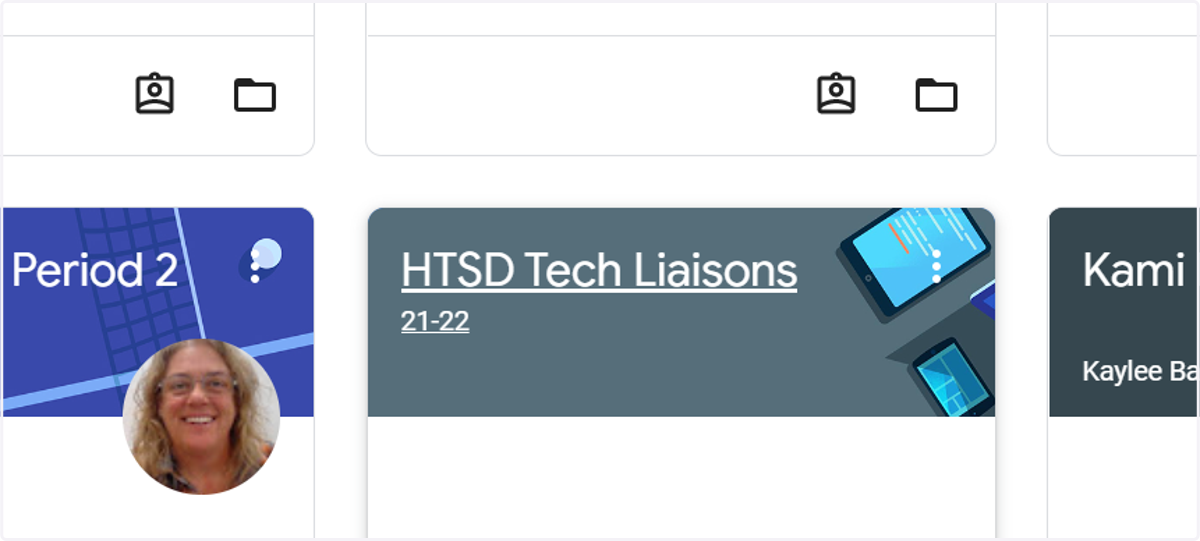
2. Click on the classroom you'd like to access
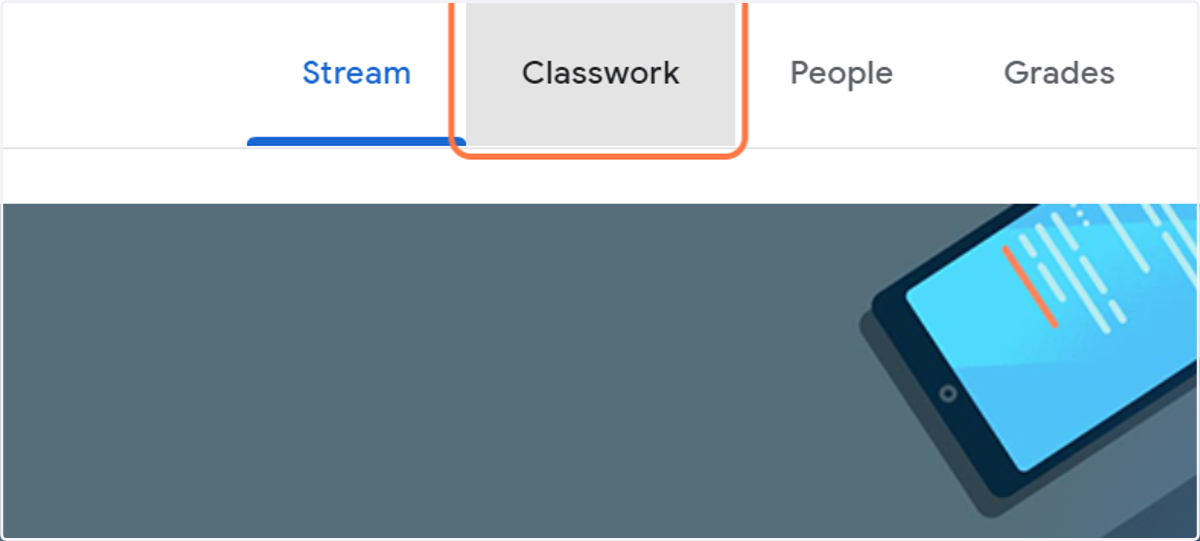
3. Click on Classwork
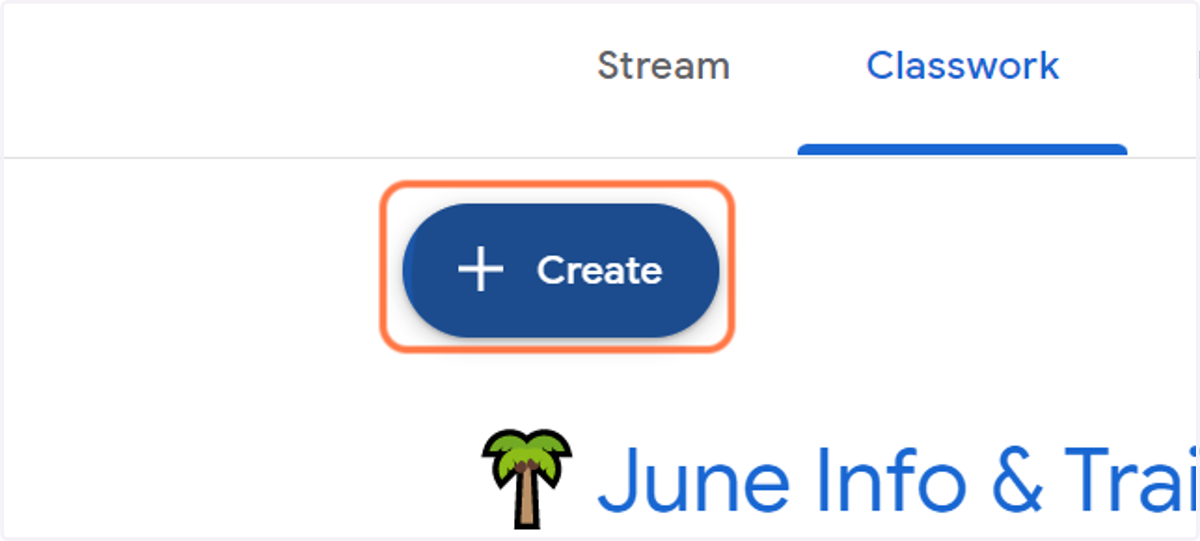
4. Click on Create
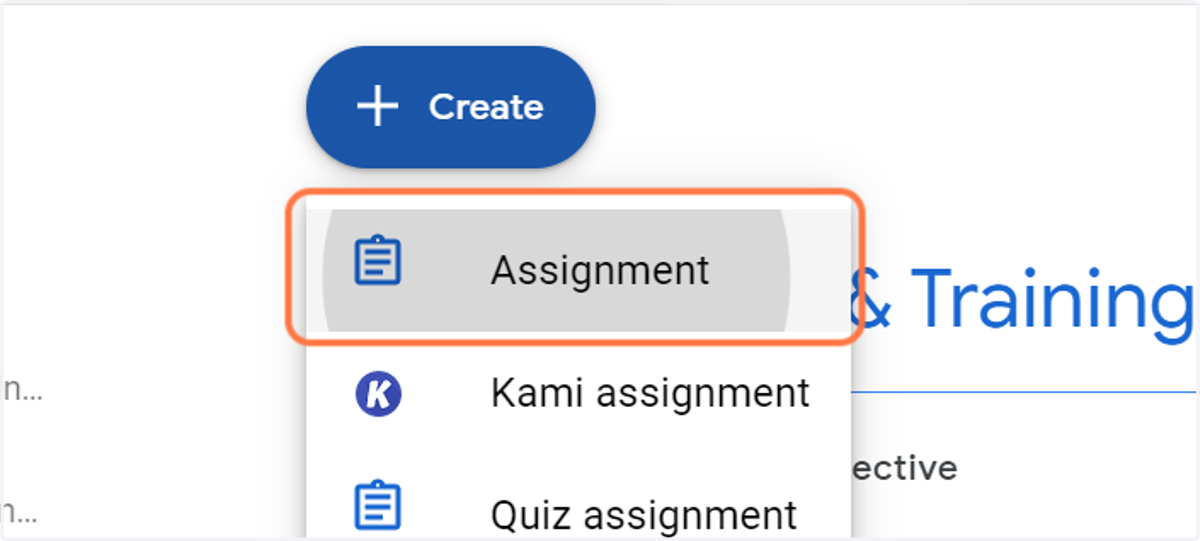
5. Click on Assignment
this will also work in the stream for announcements!
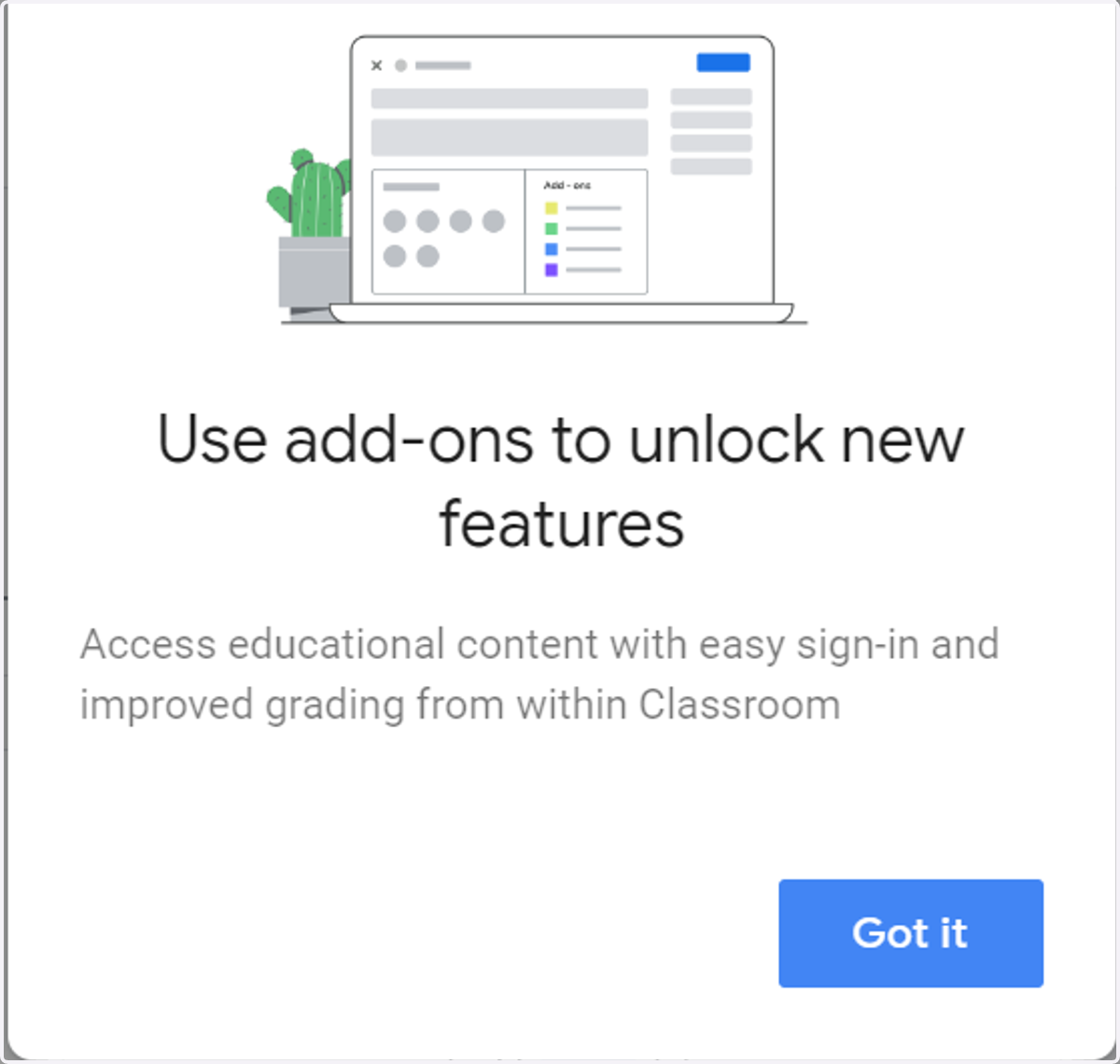
6. If it is your first time logging in, you might see this pop up to notify you of the update. Click Got it!
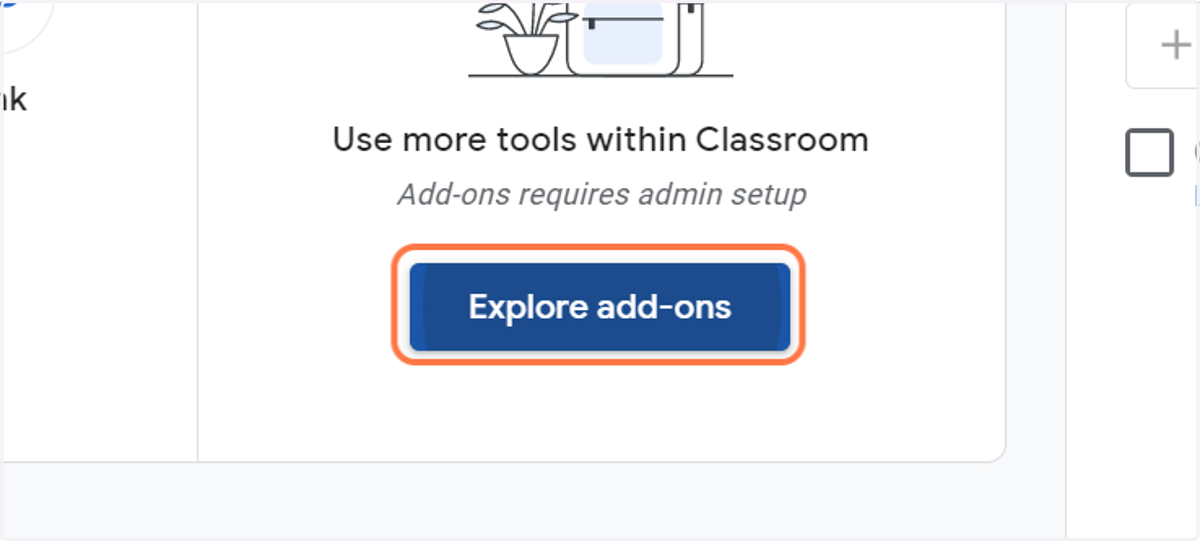
7. Click on Explore add-ons
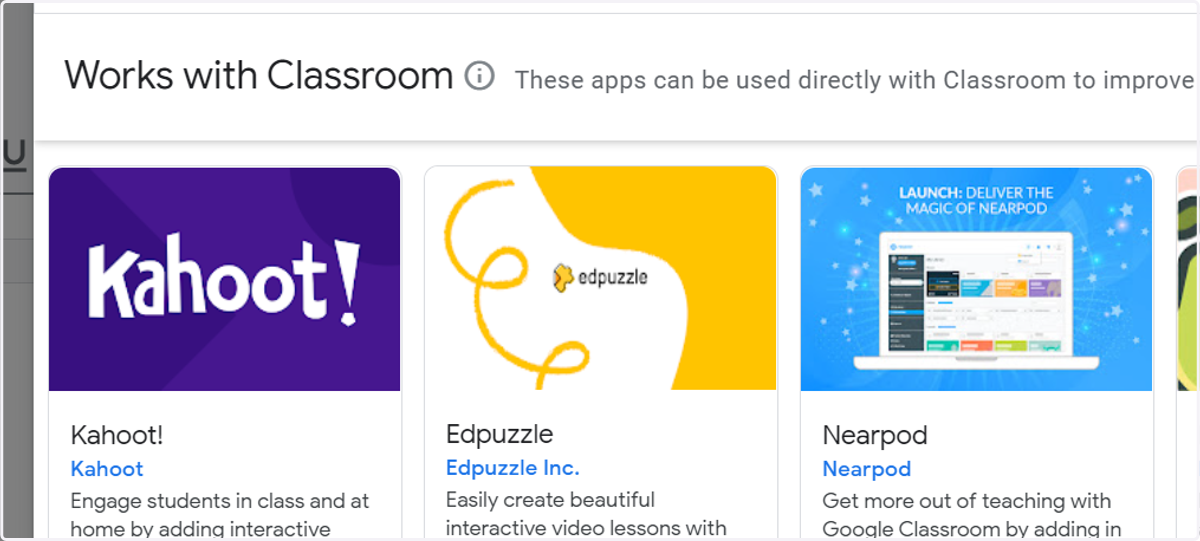
8. Click on the image of the app you want to install.
9. Click on Install
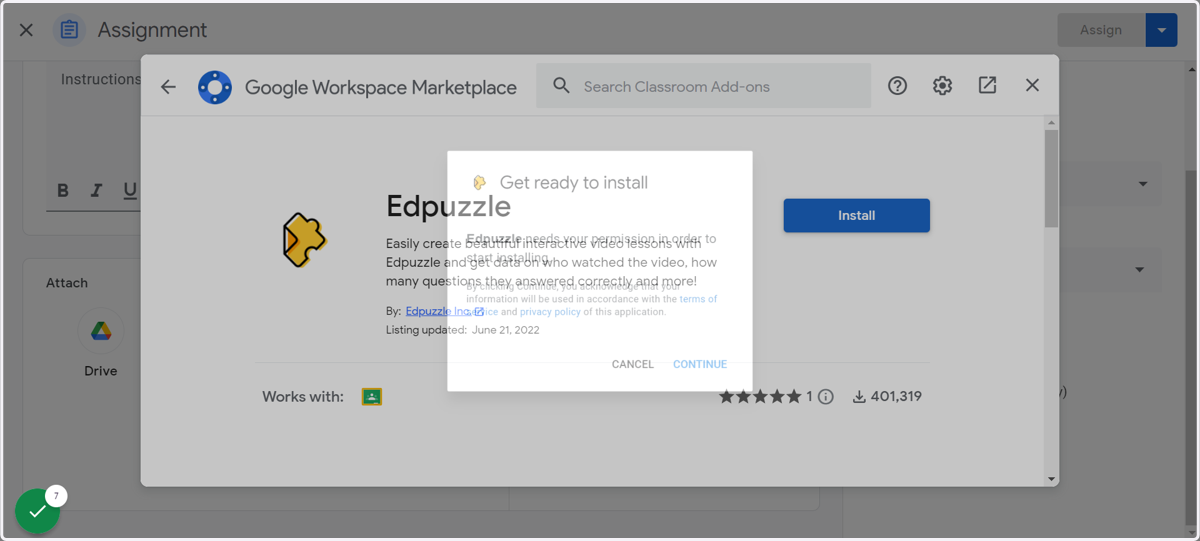
10. Click on CONTINUE
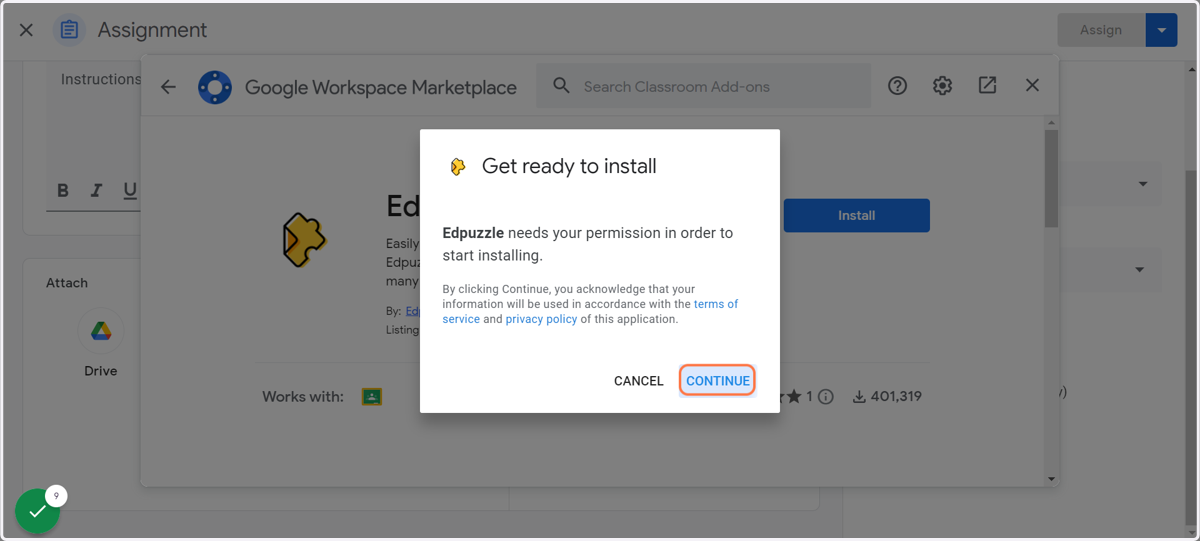
11. Make sure to allow your Google account to access so all licenses are synced.
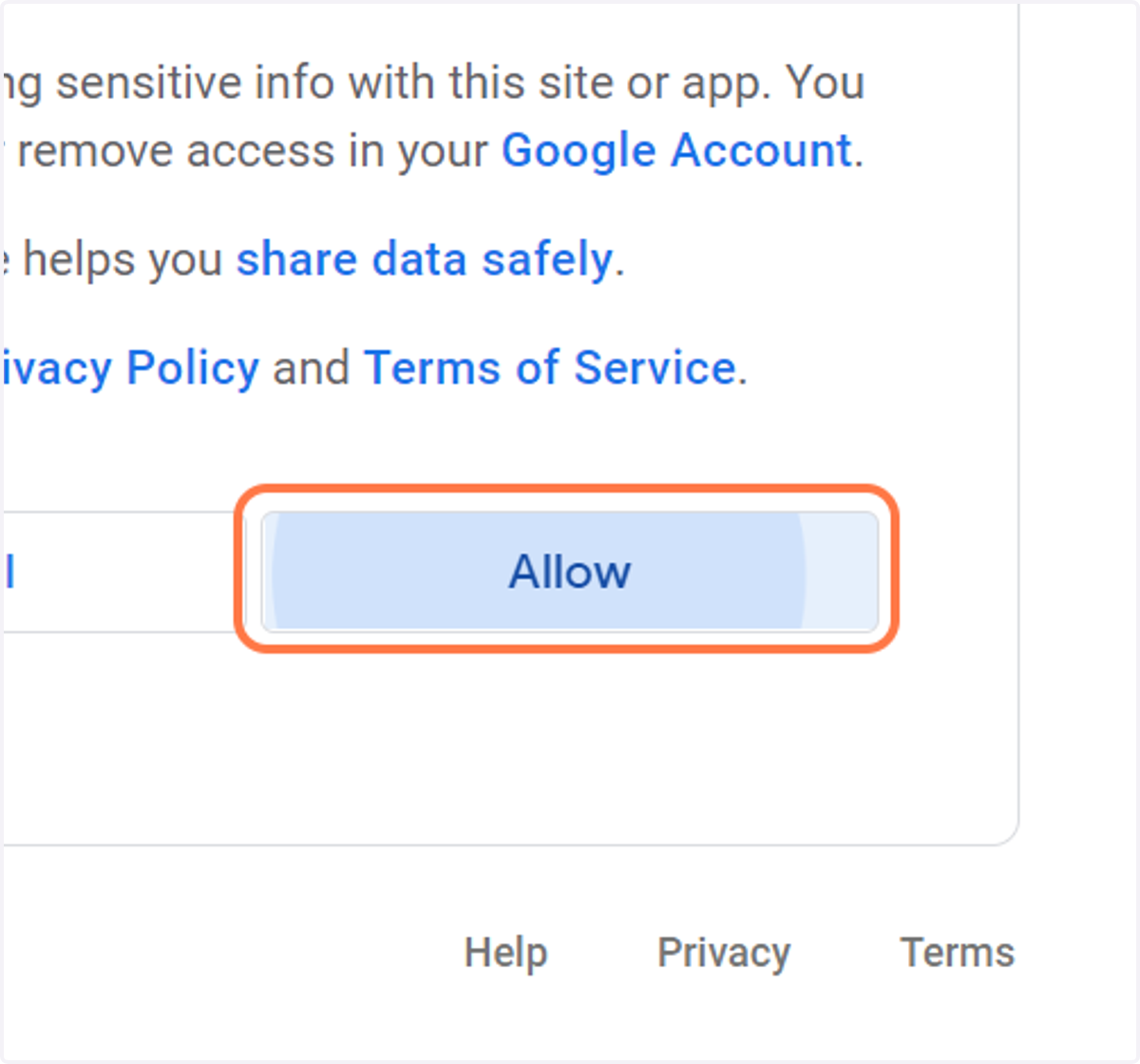
12. Click on DONE
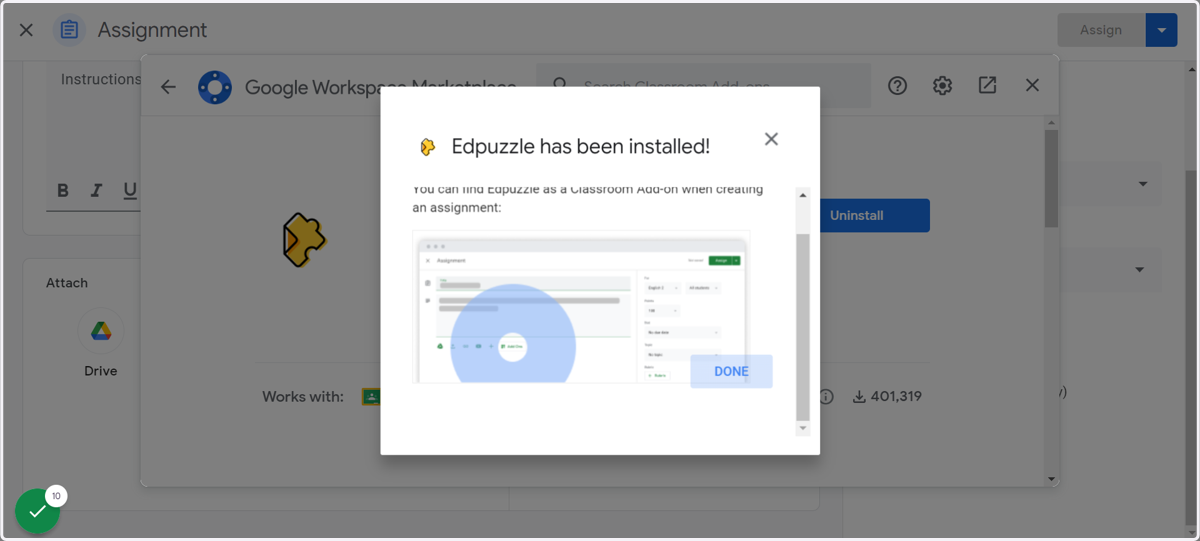
13. Close the add on window
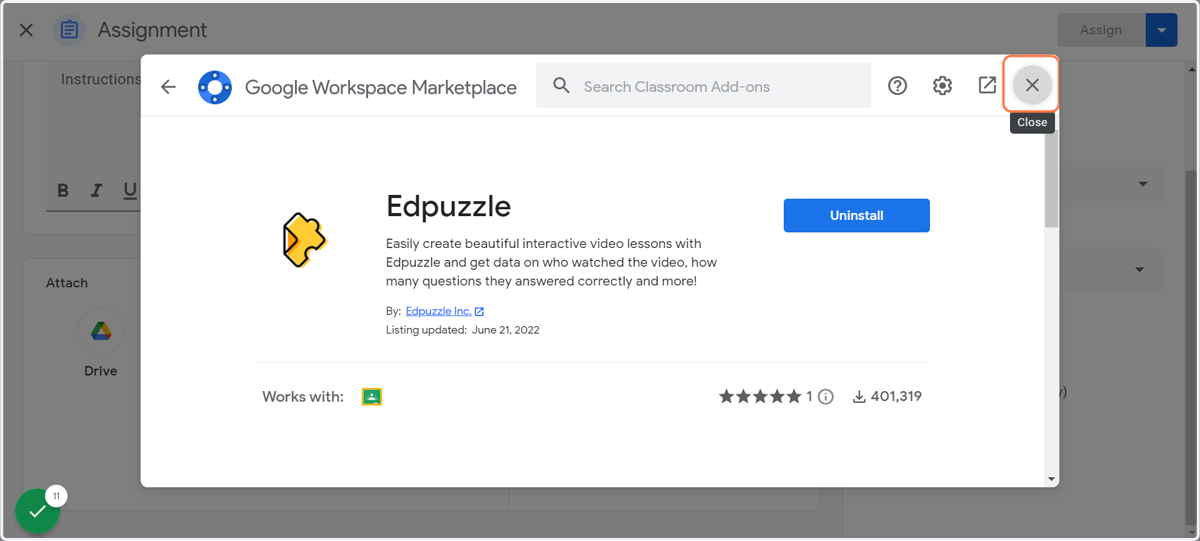
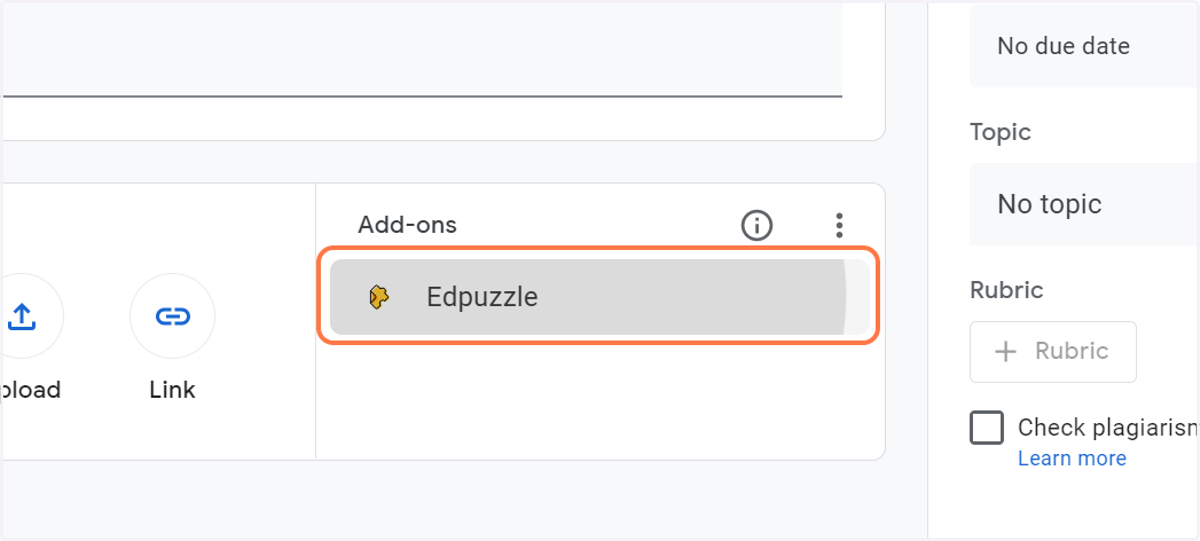
14. Click on Edpuzzle (or the app you chose to install)
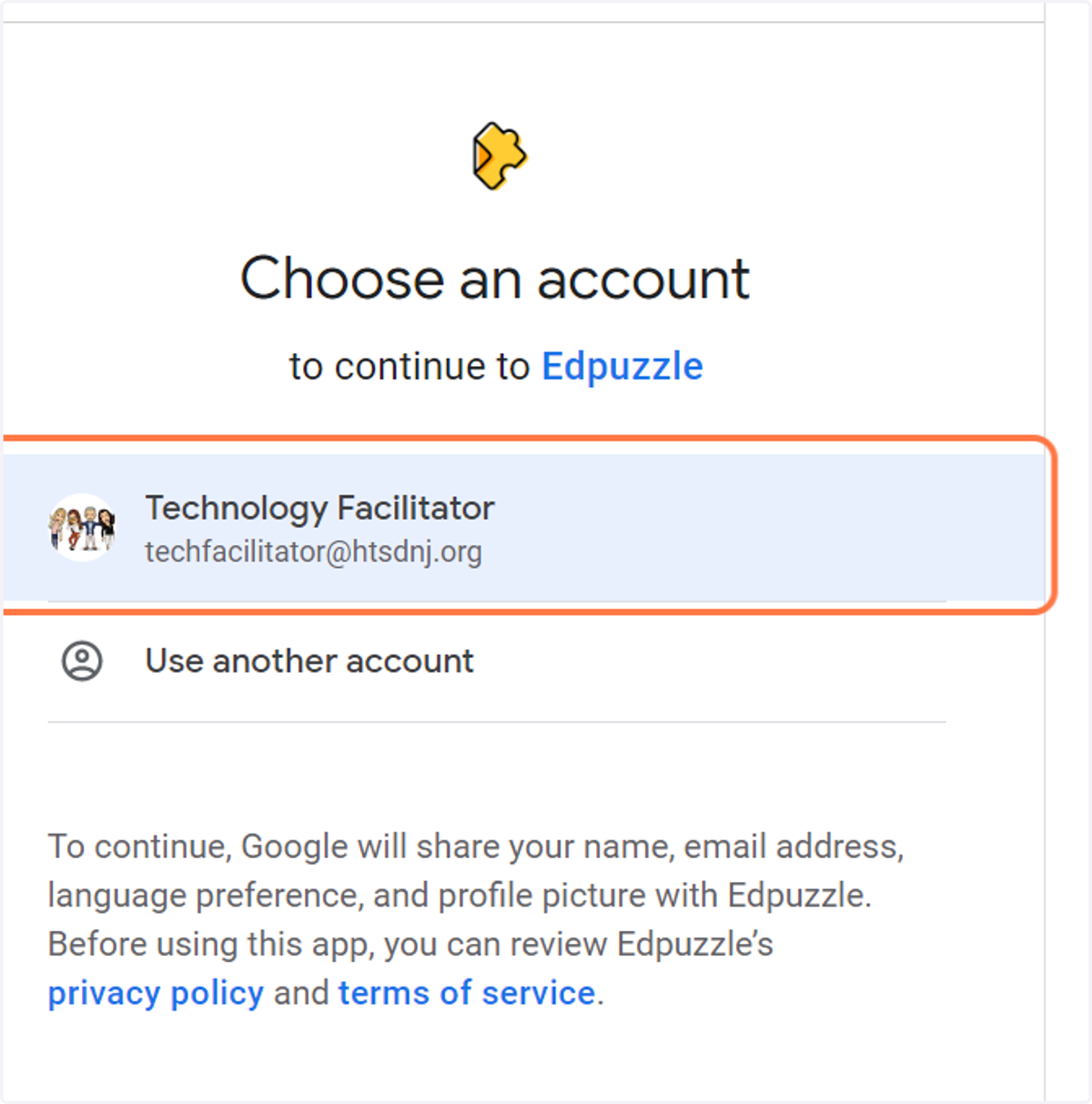
15. You might need to log in to your account again (but don't worry once you connect you won't have to do it again!)
Edpuzzle
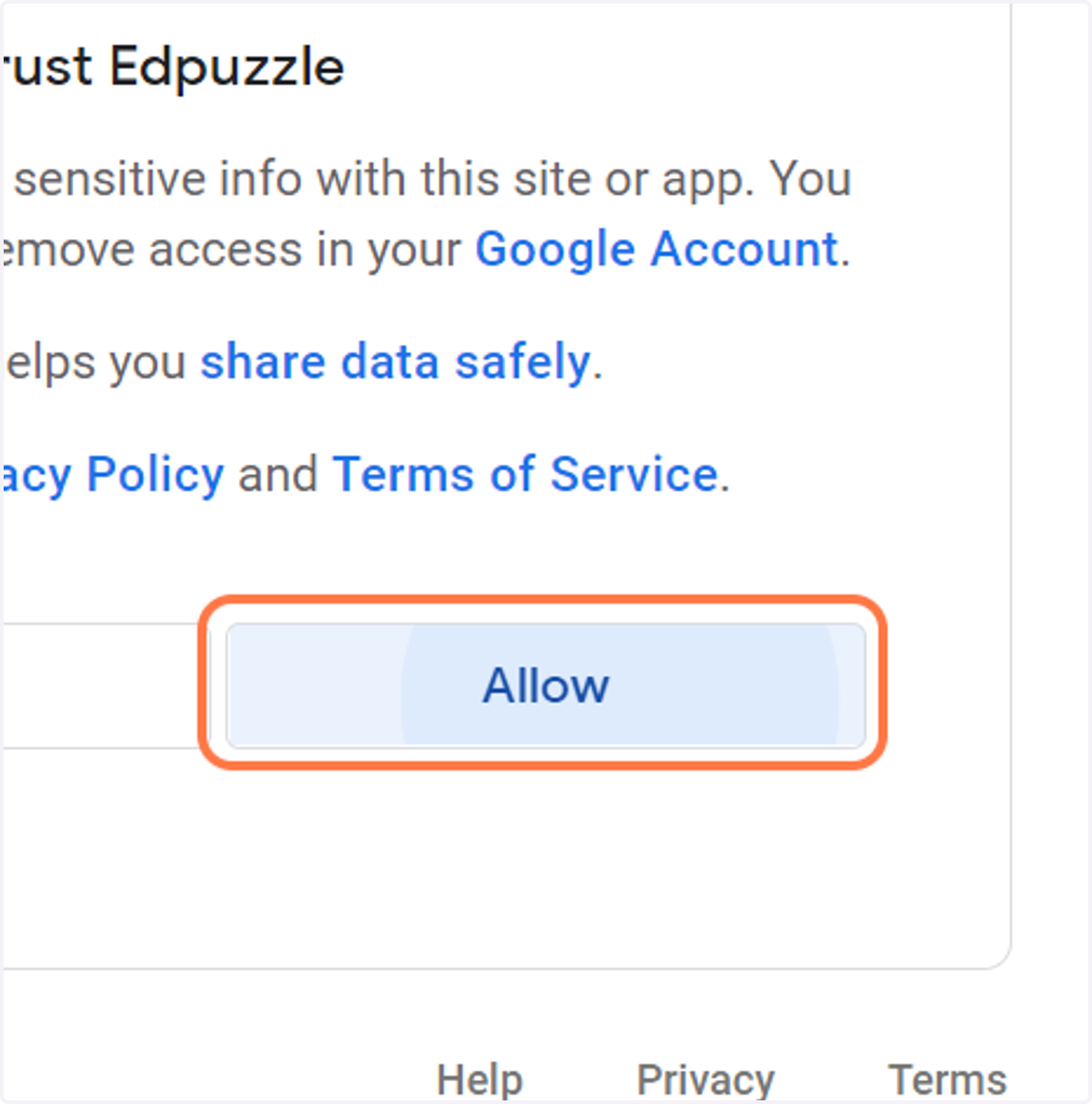
16. allow again
17. select your video you'd like to add
18. Click on Assign
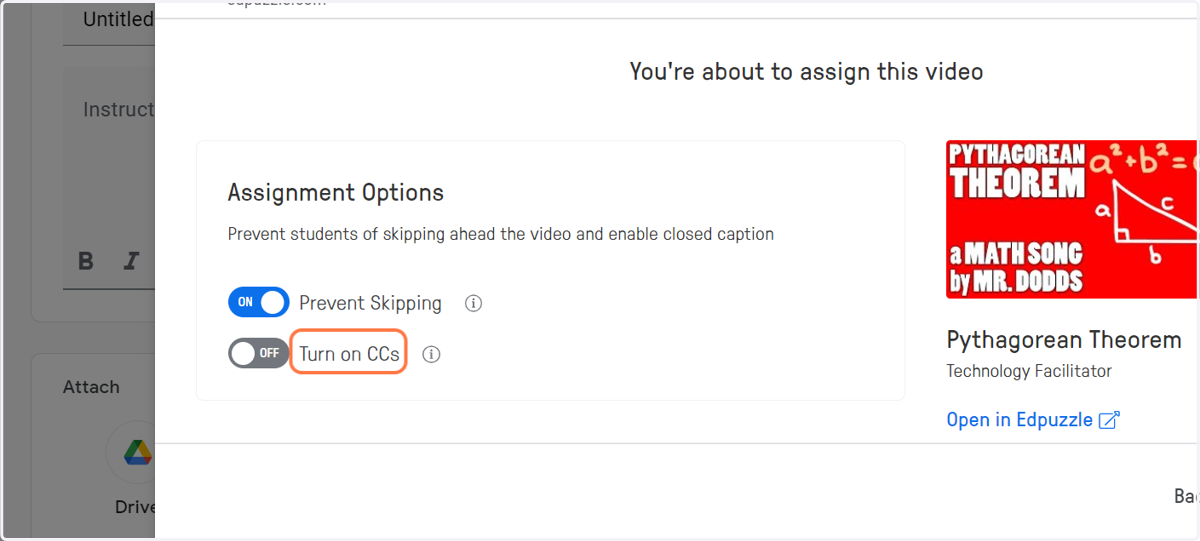
19. Check out the Assignment Options…
20. Click on Assign